
Why Animations Matter in Web Design
You’ve probably noticed how some websites feel alive and responsive while others feel static and flat. That’s where CSS animations come in. They’re not just about making things look cool — though they do that. Animations guide user attention, provide feedback, and make interfaces feel more responsive and intentional.
Here’s the thing though: not all animations are created equal. A poorly executed animation can actually hurt performance and annoy users. We’re talking battery drain, jank, and that frustrating feeling when something doesn’t respond immediately. The good news? Once you understand the fundamentals, you’ll know how to build animations that actually enhance the user experience.
The Foundation: What Are Keyframes?
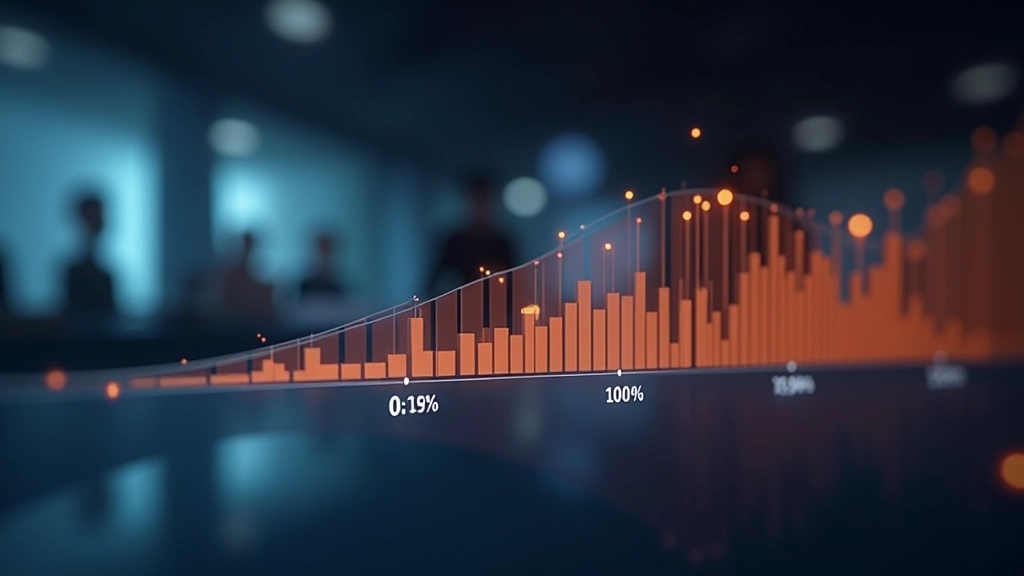
At its core, a keyframe is simply a snapshot of what your element looks like at a specific point in time. When you define keyframes, you’re essentially creating a series of waypoints. The browser then fills in all the frames between those waypoints, creating smooth motion.
Think of it like stop-motion animation. You position an object, take a photo. Move it slightly, take another photo. Do this dozens of times, play it back quickly, and it looks like the object’s moving on its own. That’s exactly what keyframes do in CSS.
Key Point: Keyframes use percentage values (0%, 50%, 100%) to mark positions in time. 0% is the start, 100% is the end. Everything in between is calculated automatically.
Timing Functions: The Feel of Motion
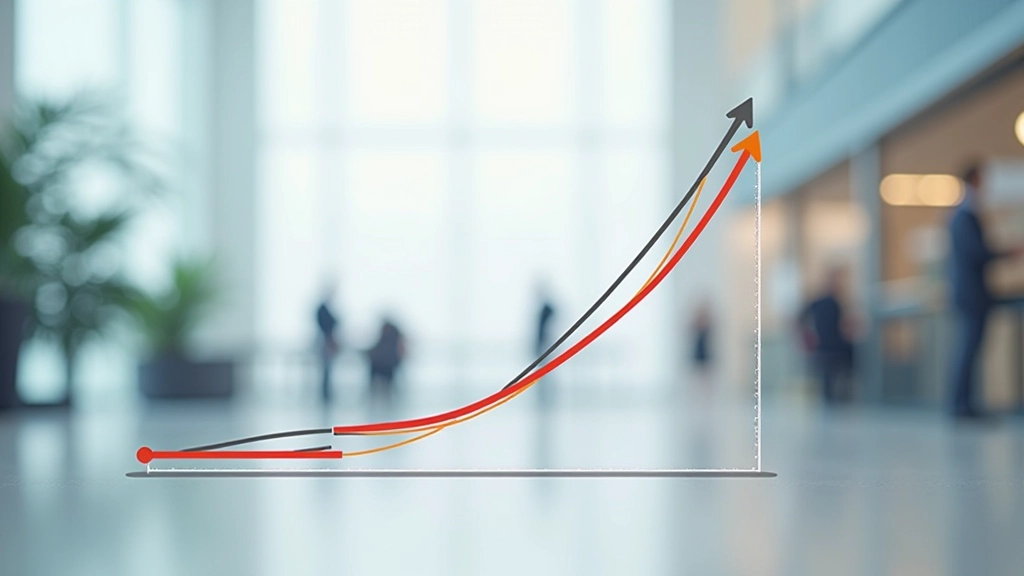
Duration matters, but how the animation progresses matters more. This is where timing functions come in. A timing function controls the acceleration and deceleration of your animation. It’s the difference between something feeling sluggish and something feeling snappy.
There are several built-in timing functions you can use.
ease
is the default — it starts slow, speeds up in the middle, then slows down at the end.
linear
keeps the same speed throughout.
ease-in
starts slow and accelerates.
ease-out
starts fast and decelerates. Most of the time, you’ll want
ease-out
for things appearing on screen — it feels more natural.
Common Timing Functions
ease: Slow start, fast middle, slow end. Best for general UI movements.
linear: Constant speed. Good for continuous movements like rotating icons.
ease-out: Fast start, slow end. Perfect for elements appearing or sliding in.
ease-in: Slow start, fast end. Good for elements disappearing or moving away.
Building Animations That Don’t Drain Battery
Not all CSS properties animate equally. Some are cheap to animate, others are expensive. When you animate expensive properties, the browser has to repaint large portions of the page repeatedly. On mobile devices, this drains battery fast. On older devices, it causes stuttering.
The sweet spot? Animate
transform
and
opacity
. These properties don’t trigger layout recalculation — they’re handled by the GPU and run smoothly even on modest hardware. Avoid animating properties like width, height, left, right, top, or bottom. These force the browser to recalculate the layout of the entire page.
Pro tip: Use
transform: translateX()
instead of
left:
, and
transform: scale()
instead of
width/height
. You’ll see immediate performance gains.
Putting It All Together: A Real Example
Let’s say you’re building a button that pulses when it needs attention. You’d define keyframes that change the opacity and scale, apply it with a 2-second duration, and set it to loop infinitely. The animation would use
ease-in-out
so the pulse feels organic, not mechanical.
This kind of subtle animation draws the eye without being distracting. It works on any device. And since we’re only animating
transform
and
opacity
, performance is solid even on phones from 5 years ago.
The key to great animations? Start simple. Master the fundamentals like timing functions and which properties to animate. Then layer in complexity as you need it. Most of the animations you see on professional sites are built from these basic building blocks.

Moving Forward
CSS animations are one of the most powerful tools in modern web design. They’re not hard to learn — the basics take maybe an hour to grasp. But they have a massive impact on how users perceive your site. A smooth, thoughtful animation makes an interface feel premium and intentional.
Start experimenting. Build something that moves. Notice how different timing functions feel different. Test on your phone and see what doesn’t stutter. This hands-on exploration is where you’ll really internalize how animations work. And once you’ve got that foundation solid, you’ll be ready to tackle more advanced techniques like animation libraries and JavaScript-driven motion.
Ready to Level Up?
Explore advanced animation techniques and micro-interactions in our next guide.
Explore Advanced TechniquesEducational Note
This guide provides educational information about CSS animation techniques and best practices. Browser support and performance may vary depending on your target audience and device specifications. We recommend testing animations across different devices and browsers before deploying to production. For the latest browser compatibility information, refer to current MDN Web Docs and CanIUse resources.