
Advanced Animation Techniques with JavaScript
Take your animations to the next level with libraries, scroll triggers, and gesture controls. Build smooth, performant sequences that respond to user interaction.

Why JavaScript Animation Matters
CSS animations are great for simple effects, but they’re not the whole story. When you need animations that respond to scroll position, user gestures, or real-time data, JavaScript becomes essential. It’s the difference between a static transition and an interactive experience that feels alive.
The thing is, JavaScript animation can seem intimidating at first. But once you understand the core concepts — requestAnimationFrame, easing functions, and library APIs — you’ll unlock possibilities that CSS alone can’t touch. You’re not starting from scratch. You already know CSS animations work. Now you’re adding power and flexibility to that foundation.
Modern libraries like GSAP, Framer Motion, and Three.js handle the complex math for you. Your job becomes choosing the right tool and orchestrating animations in a way that enhances the user experience, not overwhelms it.
Understanding requestAnimationFrame
RequestAnimationFrame (RAF) is your foundation for smooth JavaScript animations. Instead of using setTimeout or setInterval, RAF syncs with the browser’s refresh rate — typically 60fps. This means your animations run at the same speed as everything else on screen, preventing jank and stuttering.
Here’s the core concept: you pass a callback function to RAF, and the browser calls it right before the next repaint. You update your element’s position or properties inside that callback, and RAF automatically throttles to the monitor’s refresh rate. No manual frame rate management needed.
- Syncs with browser refresh rate for smooth 60fps animations
- Automatically pauses when tab isn’t visible, saving battery
- Returns a request ID you can cancel with cancelAnimationFrame
- More efficient than setTimeout for animation loops


Scroll-Triggered Animations
Scroll-triggered animations make content feel more intentional. Instead of elements appearing instantly when you scroll to them, they animate in — fade, slide, scale. The Intersection Observer API makes this efficient by only tracking elements currently in or near the viewport.
You don’t need a library for basic scroll triggers. Set up an Intersection Observer, watch for when elements enter the viewport, then add an active class that triggers CSS animations. This approach is lightweight and performs well even on older devices.
For more complex scenarios — parallax effects, progressive reveals, or animations tied to exact scroll distance — libraries like ScrollTrigger (part of GSAP) handle the math. They’ll manage timing, easing, and coordination so your animations stay smooth regardless of scroll speed.
Gesture-Based Animation Control
Touch and mouse events let you create animations that respond directly to user input. Swipe to move a carousel, drag to reveal content, pinch to zoom. These interactions feel responsive because the animation follows the user’s gesture in real time, not on a fixed timeline.
Pointer Events API
Pointer events unify mouse, touch, and pen input into a single event system. Listen for pointerdown, pointermove, and pointerup, then update your animation based on the pointer’s current position. It’s cleaner than juggling separate mouse and touch events.
Momentum & Inertia
When a user swipes and releases, the animation shouldn’t stop immediately. Apply momentum — calculate velocity from the drag movement, then gradually decelerate. This feels natural and matches how iOS and Android handle gestures.
Drag Constraints
Limit how far an element can be dragged. Set min and max boundaries so the animation stays within defined limits. When the user releases, snap back to the nearest valid position with a spring animation.
Performance Optimization
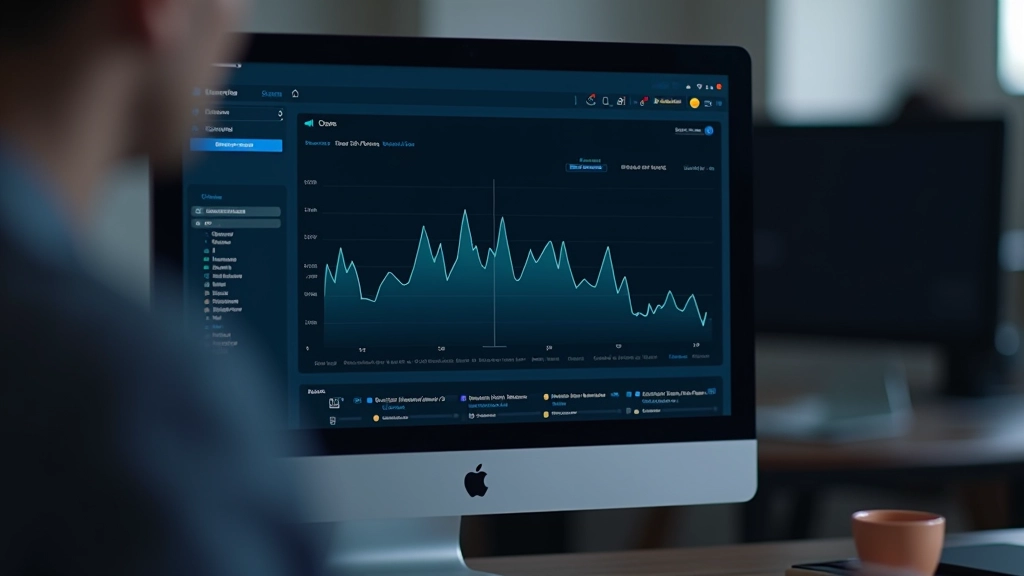
Smooth animations require smooth performance. If your animations stutter or cause the browser to lag, users notice immediately. The goal is consistent 60fps — that’s 16.67 milliseconds per frame to do all your work: update positions, recalculate transforms, and let the browser paint.
Start by understanding what causes reflows and repaints. Reading and writing DOM properties in the same frame forces the browser to recalculate layout. Batch your reads first, then your writes. Better yet, use transform and opacity — these properties don’t trigger layout recalculations, just paint operations.
Throttle your event listeners. If you’re tracking scroll or mouse movement, don’t update on every single event. Instead, wait for the next animation frame. This reduces the frequency of your update calculations and keeps performance consistent.
Bringing It All Together
JavaScript animation doesn’t have to be complex. Start with requestAnimationFrame and simple easing functions. Add scroll triggers using Intersection Observer. Then layer in gesture controls once you’re comfortable with the basics.
The best animations feel invisible to the user — they enhance the experience without drawing attention to themselves. Every animation should have a purpose: clarify interaction, guide attention, or provide feedback. If you’re animating something just because you can, it’s probably unnecessary.
You’ll improve fastest by experimenting. Pick a simple component — a card, a menu, a form input — and animate it in different ways. See what feels right. Get familiar with libraries like GSAP or Framer Motion. Most importantly, test on real devices. What feels smooth on your desktop might stutter on a mid-range phone. Performance matters.
Ready to deepen your animation skills?
Explore the fundamentals with CSS animations, then master micro-interactions and responsive layouts.
Browse All Animation GuidesEducational Context
This guide provides educational information about JavaScript animation techniques and best practices. The approaches described are based on current web standards and community practices as of 2026. Browser support, performance characteristics, and API details may vary across different browsers and devices. Always test your animations across your target devices and browsers. Animation techniques continue to evolve — stay updated with current documentation and performance guidelines from your chosen libraries and the web platform itself.